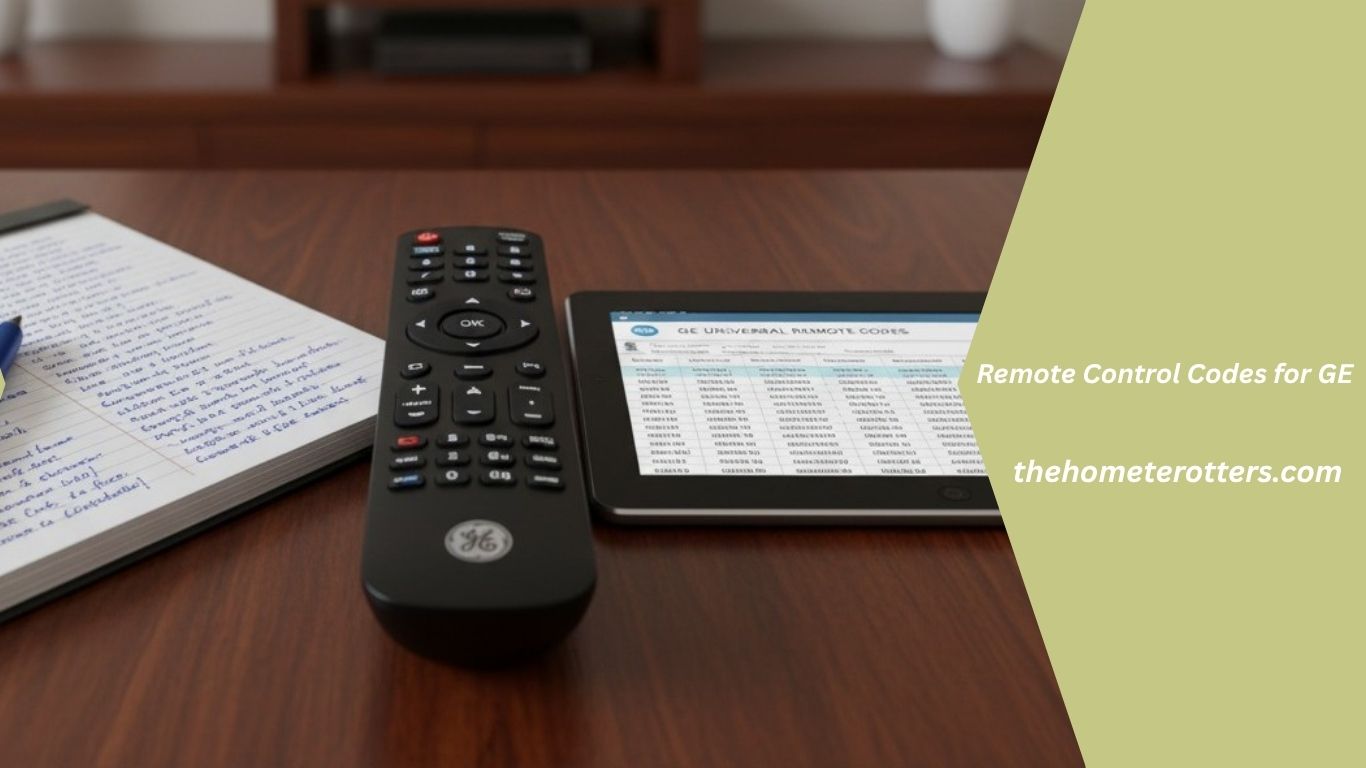
Remote Control Codes for GE: Easy Setup and Programming Guide
If you’re trying to connect a GE universal remote to your TV, streaming device, DVD player, soundbar, or cable box, finding the correct remote control codes for GE is the most important step. A compatible code allows the remote to communicate with your device so you can control power, volume, channels, and other basic functions.
Many people become frustrated when their GE remote doesn’t work after entering a code. In most cases, the problem isn’t the remote—it’s using an incorrect code, selecting the wrong programming method, or trying only one code when several are available for the same brand.
This guide explains everything you need to know about remote control codes for GE in 2026. You’ll learn how GE universal remotes work, where to find the correct codes, how to program your remote using different methods, and what to do if none of the codes seem to work.
Whether you’re programming a brand-new GE universal remote or reconnecting one after replacing your TV or batteries, this guide provides simple, step-by-step instructions that anyone can follow.
What Are Remote Control Codes for GE?
Remote control codes for GE are numeric codes that allow a GE universal remote to recognize and operate electronic devices from different manufacturers.
Every television, DVD player, streaming box, or sound system uses a specific communication protocol. Since brands use different infrared (IR) signals, a universal remote needs the correct code to imitate the original remote.
For example:
- Samsung TVs use one set of codes.
- LG TVs use another.
- Sony, TCL, Vizio, Roku, Philips, and Hisense all have their own compatible codes.
Instead of manufacturing a different remote for every brand, GE stores thousands of these codes inside a single universal remote. During setup, you simply enter the correct code, and the remote becomes compatible with your device.
This is why a single GE remote can often replace several original remotes.
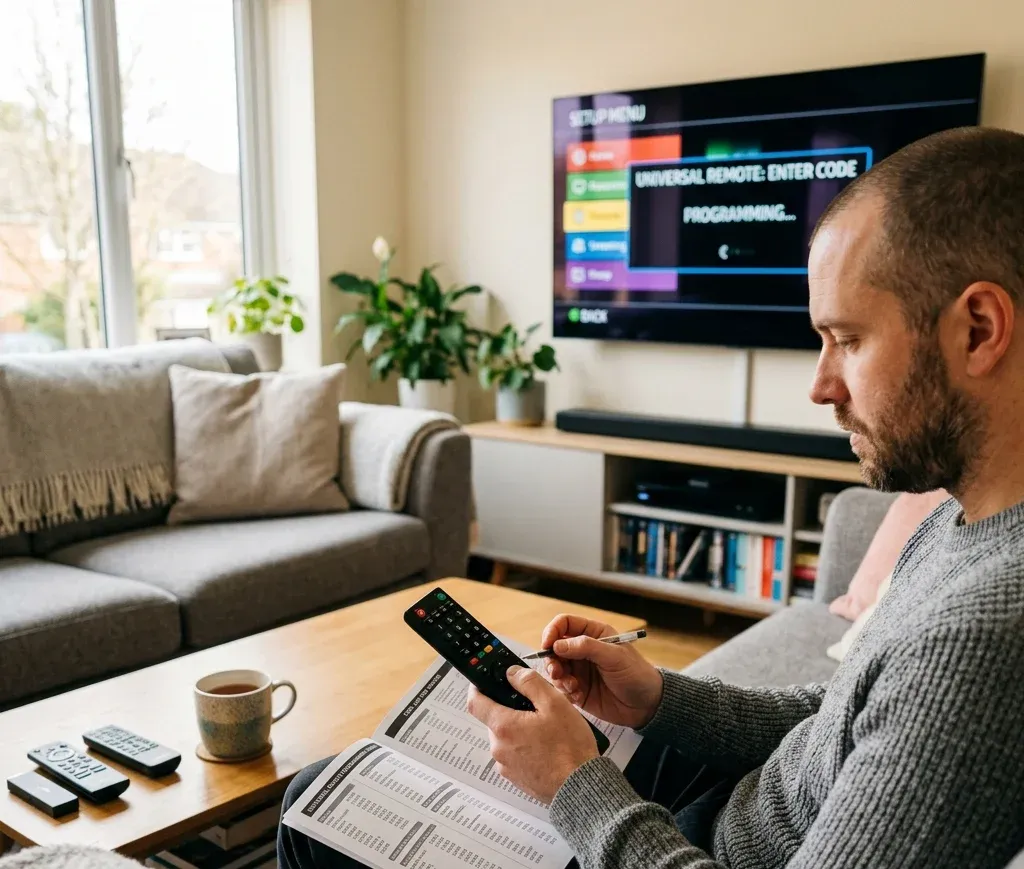
How GE Universal Remotes Work
A GE universal remote uses infrared (IR) technology to send commands to your entertainment devices.
When you press a button like Power, Volume Up, or Channel Down, the remote transmits an infrared signal. After you’ve entered the correct device code, that signal matches the one expected by your television or media device.
Most GE universal remotes support:
- TVs
- Smart TVs
- Roku devices
- DVD players
- Blu-ray players
- Soundbars
- Home theater systems
- Cable boxes
- Satellite receivers
- Streaming players
Some newer GE universal remotes can control up to eight devices simultaneously, making them ideal for home entertainment systems.
How to Find the Correct Remote Control Codes for GE
Finding the right code depends on three things:
Also Raed:Geekzilla Tio Geek: The Complete Guide to Technology, Gaming & Geek Culture
- Your GE remote model
- The device type
- The manufacturer
Always check:
- The instruction manual included with the remote
- The battery compartment for the model number
- The official GE code list for your specific remote version
Remember that manufacturers occasionally release updated code databases. A code that works on one GE remote model may not work on another.
If the first code doesn’t work, continue testing the remaining codes listed for your brand.
GE Universal Remote Code Formats
Depending on the model, GE universal remotes may use different code lengths.
3-Digit Codes
Older GE universal remotes often use three-digit programming codes.
Example:
- 004
- 020
- 055
4-Digit Codes
Most popular GE remote models use four-digit codes.
Examples include:
- 0101
- 0178
- 0456
- 1161
5-Digit Codes
Some of the newest GE universal remotes use five-digit programming codes.
Examples include:
- 10047
- 10178
- 10706
- 11314
Always use the code format supported by your specific remote model.
Remote Control Codes for GE TVs
Below are some of the most commonly used TV brands and compatible GE remote codes.
Samsung TV Codes
Common codes include:
- 0105
- 0077
- 0172
- 0012
- 0085
- 10060
- 10178
LG TV Codes
Popular codes include:
- 0004
- 0050
- 0178
- 0706
- 10178
- 11265
Sony TV Codes
Common options include:
- 0000
- 0111
- 0810
- 10000
- 10810
Vizio TV Codes
Frequently used codes:
- 1758
- 0178
- 10178
- 12757
TCL TV Codes
Common GE codes include:
- 2434
- 3183
- 4398
- 6171
Hisense TV Codes
Try these codes:
- 0748
- 1314
- 1660
- 3519
Philips TV Codes
Popular codes:
- 0054
- 0690
- 1454
- 1744
Sharp TV Codes
Common codes:
- 0093
- 0165
- 0386
- 0818
Toshiba TV Codes
Common choices:
- 0156
- 0060
- 0145
- 11524
Panasonic TV Codes
Try:
- 0250
- 0051
- 0650
- 11480
These codes vary depending on both the television model and the GE remote version. If one code doesn’t pair successfully, continue trying the others listed for the same brand.
GE Remote Codes for Popular Streaming Devices
Streaming devices have become a major part of home entertainment. Many GE universal remotes support them.
Roku
Common codes include:
- 6171
- 6001
- 2891
- 2014
Apple TV
Some GE remotes support Apple TV using:
- 2615
- 2402
Amazon Fire TV
Depending on model:
- 6091
- 6171
- 3183
Chromecast with Google TV
Programming varies by remote version, but newer GE models include compatible code libraries for Google TV devices.
GE Remote Codes for DVD and Blu-ray Players
GE universal remotes can also control DVD and Blu-ray players from many popular brands. While some advanced features may still require the original remote, basic functions such as Power, Play, Pause, Stop, Fast Forward, Rewind, and Menu usually work after successful programming.
Below are commonly used remote control codes for GE by DVD and Blu-ray brand.
Sony DVD Player Codes
Common codes include:
- 0401
- 0987
- 1516
- 1633
Samsung DVD Player Codes
Try these codes:
- 0942
- 0454
- 0899
- 1908
LG DVD Player Codes
Popular codes:
- 0907
- 0915
- 0741
- 1602
Panasonic DVD Player Codes
Common choices:
- 0490
- 1762
- 1579
- 1489
Philips DVD Player Codes
Frequently used codes:
- 0503
- 0539
- 0675
- 0854
Toshiba DVD Player Codes
Try:
- 0503
- 0695
- 1045
- 1510
Pioneer DVD Player Codes
Common options:
- 0525
- 0571
- 0631
- 1475
Magnavox DVD Player Codes
Popular codes include:
- 0503
- 0675
- 0821
- 1268
If one code only provides partial control—for example, Power works but Play does not—try another code listed for the same brand. Different device models often use different command sets.
GE Remote Codes for Soundbars and Audio Systems
Many people use a GE universal remote to simplify their entertainment setup by controlling both the TV and the sound system.
Bose Soundbar Codes
Common codes include:
- 1229
- 1256
- 1933
- 3193
Samsung Soundbar Codes
Popular codes:
- 1295
- 1500
- 2051
- 3260
LG Soundbar Codes
Frequently used:
- 1293
- 2424
- 4086
- 4398
Sony Soundbar Codes
Common choices:
- 1516
- 3175
- 3213
- 3534
Vizio Soundbar Codes
Try:
- 1517
- 2563
- 3154
- 3741
Also Raed:Bumpdots.com: Complete Guide to the AI, Technology, Business & Digital Culture Platform
Yamaha Audio Receiver Codes
Popular options:
- 0176
- 1331
- 2061
- 2455
Onkyo Receiver Codes
Common codes:
- 0135
- 0842
- 1805
- 2965
Some audio devices support volume and mute but may not respond to advanced settings such as EQ modes or Bluetooth controls. This is normal because universal remotes typically focus on essential functions.
GE Remote Codes for Cable and Satellite Boxes
Most GE universal remotes also support cable and satellite receivers.
Xfinity (Comcast)
Common codes:
- 1982
- 1376
- 2561
- 1877
Spectrum
Try:
- 1376
- 1877
- 1982
DirecTV
Popular codes:
- 1377
- 2398
- 3724
DISH Network
Common choices:
- 0775
- 1505
- 1775
Cox Cable
Frequently used:
- 1877
- 1982
- 1376
Verizon Fios
Common codes:
- 3264
- 3724
- 1877
Most cable boxes allow control of:
- Power
- Channel Up/Down
- Guide
- Menu
- Navigation buttons
- Select/OK
- Exit
- Number keys
Programming a GE Universal Remote Using Manual Codes
Programming your GE remote manually is usually the fastest and most reliable method.
Step 1: Turn On the Device
Power on the TV or device you want to control.
Step 2: Press the Setup Button
Press and hold the Setup button until the indicator light stays on.
On some remote models, the red light will blink twice before remaining solid.
Step 3: Select the Device
Press the button for the type of device.
Examples include:
- TV
- DVD
- AUX
- Streaming
- Cable
The light should blink once.
Step 4: Enter the Code
Using the number pad, enter one of the remote control codes for GE that matches your device brand.
If the code is accepted, the indicator light usually turns off.
Step 5: Test the Remote
Press:
- Power
- Volume
- Channel
- Menu
If everything works correctly, programming is complete.
If not, repeat the process using another code from the same manufacturer.
Auto Code Search Method
Don’t know the correct code?
Most GE universal remotes include an automatic search feature.
Step 1
Turn on the device.
Step 2
Hold the Setup button until the indicator stays on.
Step 3
Press the device button.
Step 4
Press and release the Power button repeatedly.
The remote sends a different code every few seconds.
Step 5
When the device turns off, immediately press Enter or OK (depending on your remote model).
The remote saves that working code automatically.
Although this method takes longer than manual programming, it is extremely useful if you no longer have the original code list.
How to Reset a GE Universal Remote
Sometimes the easiest solution is to reset the remote and start over.
A reset can help if:
- Buttons respond incorrectly.
- Programming fails repeatedly.
- The remote controls the wrong device.
- The memory becomes corrupted after battery replacement.
For many GE remote models:
- Remove the batteries.
- Press the Power button for about 30 seconds.
- Install fresh batteries.
- Reprogram the remote using the correct code.
Some newer models may have a dedicated reset sequence in the user manual.
Common Programming Problems and Solutions
The Code Doesn’t Work
Possible reasons include:
- Wrong code entered
- Wrong remote model
- Unsupported device
- Incorrect device button selected
Always try every listed code for your brand before assuming compatibility issues.
The TV Turns Off but Volume Doesn’t Work
This usually means you’ve found a partially compatible code.
Try another code for the same manufacturer until all primary functions operate correctly.
The Indicator Light Blinks Repeatedly
This often indicates:
- Invalid code
- Low batteries
- Programming timeout
Replace the batteries and restart the programming process.
Some Buttons Don’t Respond
Universal remotes usually support basic commands.
Features like:
- Voice search
- Smart Hub
- Streaming shortcuts
- Dedicated app buttons
may only work with the original manufacturer remote.
The Remote Suddenly Stops Working
Check:
- Battery charge
- Line of sight
- Infrared sensor obstruction
- Device power
- Programming memory
Replacing old batteries solves many remote issues.
Expert Tips for Better Performance
Programming a GE universal remote is usually straightforward, but these best practices can save time and improve reliability.
- Always install fresh alkaline batteries before programming.
- Point the remote directly at the device during setup.
- Test every important button before finishing.
- Save the working code for future use.
- Keep the original remote until you’re sure the GE remote controls all required functions.
- Avoid mixing old and new batteries.
- Remove obstacles between the remote and the device.
- Reprogram the remote after replacing certain smart TVs or streaming devices if compatibility changes.
Professional installers often test Power, Volume, Menu, Input, and Navigation before considering setup complete. Doing the same at home can prevent frustration later.
Common Mistakes to Avoid When Programming a GE Universal Remote
Programming a universal remote is usually simple, but a few common mistakes can prevent it from working correctly. Avoiding these issues can save you time and frustration.
Using the Wrong Code List
Not every GE universal remote uses the same programming codes. Older models may require 3-digit codes, while newer remotes use 4-digit or 5-digit codes. Always use the code list that matches your specific remote model.
Selecting the Wrong Device Button
Before entering a code, make sure you press the correct device button such as TV, DVD, AUX, STRM, or CBL. Choosing the wrong mode will cause the programming to fail.
Trying Only One Code
Many brands have multiple compatible codes. If the first code doesn’t work, continue testing the remaining codes for your device. It is common for the second or third code to provide better compatibility.
Replacing Batteries During Programming
Weak batteries can interrupt the programming process. Always install fresh batteries before setting up your GE remote.
Blocking the Infrared Sensor
GE universal remotes use infrared (IR) signals. Make sure there is a clear line of sight between the remote and the device. Objects placed in front of the TV’s IR sensor can prevent commands from being received.
Why Some Remote Control Codes for GE Work Better Than Others
Many users wonder why one code turns the TV on and off, while another controls additional features like volume and input selection.
The answer is that manufacturers often use multiple infrared command sets across different device models. A universal remote may recognize several compatible command sets for the same brand, but only one offers full functionality.
For example:
- One code may control only the Power button.
- Another may control Power and Volume.
- A third may support nearly every standard function.
For the best experience, test all available codes for your device brand until you find the one that provides the most complete control.
Can One GE Universal Remote Control Multiple Devices?
Yes. Most modern GE universal remotes are designed to operate multiple devices from a single remote.
Depending on the model, you may be able to control:
- Television
- DVD or Blu-ray player
- Streaming device
- Cable or satellite receiver
- Soundbar
- Home theater receiver
- Media player
Higher-end GE universal remotes can often manage up to eight different devices, reducing the need for several original remotes.
When Should You Replace Your GE Universal Remote?
Although GE universal remotes are reliable, there are situations where replacing the remote is a better option than continuing to troubleshoot.
Consider purchasing a new remote if:
Also Raed:BackToFrontShow Pricing: Plans, Features, Benefits, and Cost Breakdown
- Buttons no longer respond after replacing the batteries.
- The infrared transmitter has stopped working.
- The battery compartment is damaged.
- The remote has physical damage from drops or liquid spills.
- Your remote does not support newer streaming devices or smart TVs.
Newer GE universal remote models typically include larger code databases, improved compatibility, and easier programming methods.
How to Keep Your GE Universal Remote Working Longer
Proper care can extend the life of your remote and reduce programming issues.
Follow these simple maintenance tips:
- Replace batteries before they are completely drained.
- Remove batteries if the remote will not be used for several months.
- Clean the buttons regularly with a soft, dry cloth.
- Avoid exposing the remote to moisture or extreme heat.
- Store the remote where it will not be dropped or stepped on.
- Keep the battery contacts clean and free from corrosion.
Regular maintenance helps ensure reliable performance for years.
Frequently Asked Questions
What are remote control codes for GE?
Remote control codes for GE are numeric programming codes that allow a GE universal remote to communicate with TVs, streaming devices, DVD players, soundbars, cable boxes, and other compatible electronics.
Where can I find my GE remote model number?
The model number is usually printed inside the battery compartment or on the back of the remote. It can also be found in the original user manual.
Why are there multiple codes for the same TV brand?
Manufacturers often use different infrared command sets across various models. That’s why GE provides several compatible codes for many brands.
Can I program a GE remote without using codes?
Yes. Most modern GE universal remotes support an Auto Code Search feature that automatically scans through stored codes until it finds one that works.
Will a GE universal remote work with Smart TVs?
Yes. GE universal remotes work with many Smart TVs from brands like Samsung, LG, Sony, TCL, Hisense, Philips, and Vizio. However, app-specific buttons and voice control features may not be supported.
Final Thoughts
Finding the correct remote control codes for GE is the key to getting the most from your GE universal remote. Whether you’re setting up a television, streaming device, DVD player, soundbar, or cable box, using the right code ensures smooth operation and eliminates the need for multiple remotes.
While programming can sometimes require trying several codes, the process is generally straightforward. Start by identifying your remote model, use the appropriate code list, and test each compatible code until you find the one that offers full functionality. If manual programming doesn’t work, the Auto Code Search feature provides an effective alternative.
As home entertainment systems continue to evolve, GE universal remotes remain a practical and affordable solution for simplifying device control. By following the programming steps, troubleshooting advice, and expert tips in this guide, you’ll be able to configure your remote with confidence and enjoy a more convenient viewing experience.